> ## Documentation Index
> Fetch the complete documentation index at: https://docs.videngineer.com/llms.txt
> Use this file to discover all available pages before exploring further.
# Library overview
> How the Assets tree, smart views, collections, moodboards, share links, and saved teardowns fit together.
Library answers: **where do my best teardowns, media, and extracted assets live after I save them?**
Your Library is the workspace for turning research into a durable reference system. It holds starred analyses, starred media, cutouts, clean plates, extracted assets, collections, moodboards, and share links.
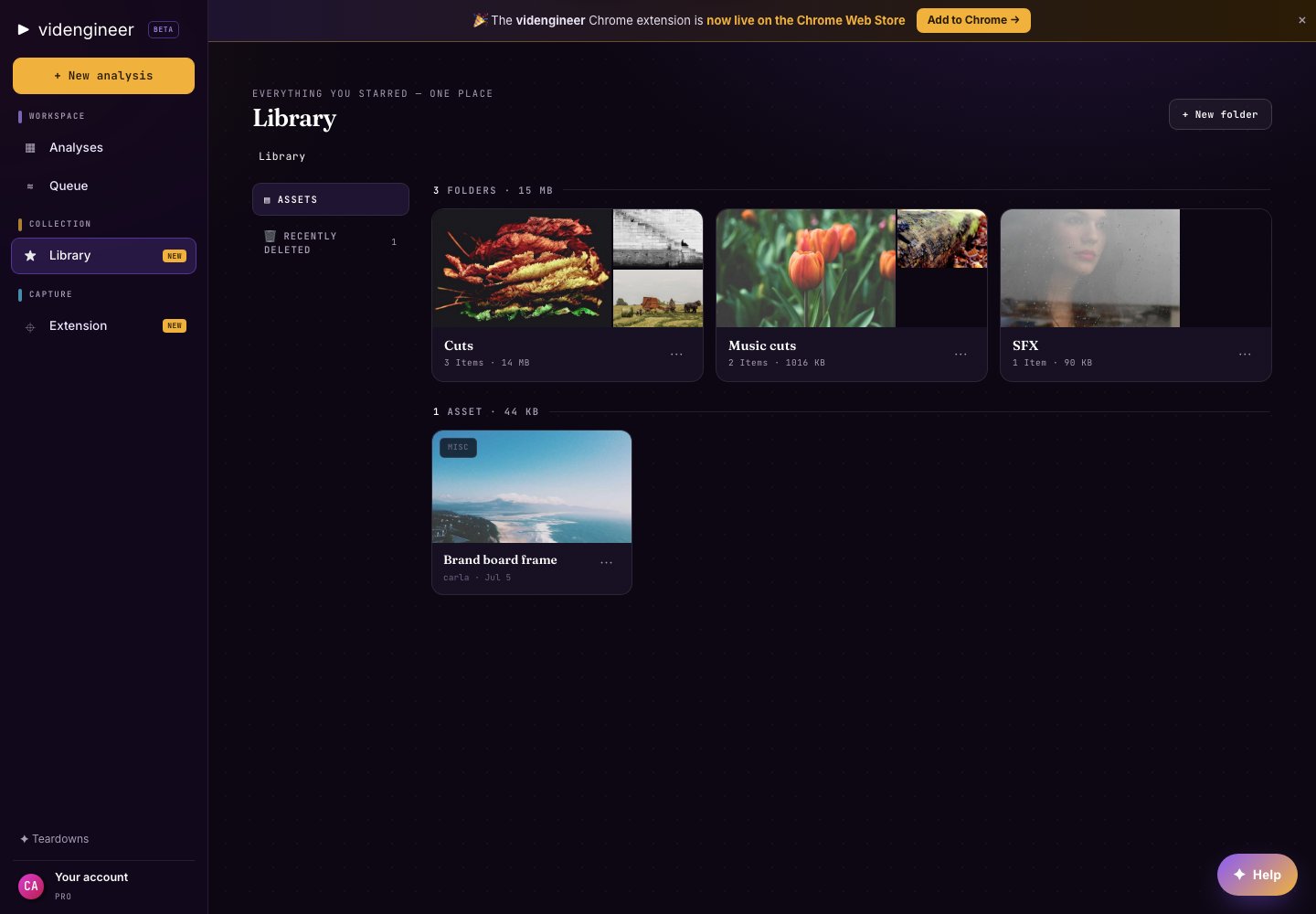 ## What lives in Library
| Surface | What it stores |
| ----------- | -------------------------------------------------------------------------------------- |
| Assets tree | File-based folders for images, clips, cutouts, clean plates, and exports |
| Smart views | Automatic views for recent items, starred media, starred analyses, and similar filters |
| Collections | Curated groups for a launch, client, category, or creative direction |
| Moodboards | Visual boards for references, cutouts, frames, and extracted assets |
| Share links | Public or team-only links when sharing is available for that item |
Team workspaces add a shared Library and pooled credits. See [Team plan & seats](/billing/team-plan-seats).
## How items get into Library
* Star an analysis from a teardown or analyses list.
* Star a media item, frame, cut, cutout, or clean plate.
* Save extracted assets from Asset Extractor.
* Add items into a collection or moodboard.
* Use the Chrome extension's star-to-Library action.
## Good Library structure
Use one of these patterns:
* **By campaign:** Launch, Black Friday, Product Hunt, webinar, feature release
* **By category:** Founder videos, UGC ads, cinematic brand films, product demos
* **By client or team:** Client A, Client B, sales enablement, growth tests
* **By job:** Hooks, proof moments, product screens, sound references, transitions
## Related pages
Folders, collections, moodboards, and trash behavior.
Find saved analyses and assets quickly.
What happens when you star a teardown or media item.
Save to Library while researching in the browser.
## What lives in Library
| Surface | What it stores |
| ----------- | -------------------------------------------------------------------------------------- |
| Assets tree | File-based folders for images, clips, cutouts, clean plates, and exports |
| Smart views | Automatic views for recent items, starred media, starred analyses, and similar filters |
| Collections | Curated groups for a launch, client, category, or creative direction |
| Moodboards | Visual boards for references, cutouts, frames, and extracted assets |
| Share links | Public or team-only links when sharing is available for that item |
Team workspaces add a shared Library and pooled credits. See [Team plan & seats](/billing/team-plan-seats).
## How items get into Library
* Star an analysis from a teardown or analyses list.
* Star a media item, frame, cut, cutout, or clean plate.
* Save extracted assets from Asset Extractor.
* Add items into a collection or moodboard.
* Use the Chrome extension's star-to-Library action.
## Good Library structure
Use one of these patterns:
* **By campaign:** Launch, Black Friday, Product Hunt, webinar, feature release
* **By category:** Founder videos, UGC ads, cinematic brand films, product demos
* **By client or team:** Client A, Client B, sales enablement, growth tests
* **By job:** Hooks, proof moments, product screens, sound references, transitions
## Related pages
Folders, collections, moodboards, and trash behavior.
Find saved analyses and assets quickly.
What happens when you star a teardown or media item.
Save to Library while researching in the browser.