> ## Documentation Index
> Fetch the complete documentation index at: https://docs.videngineer.com/llms.txt
> Use this file to discover all available pages before exploring further.
# Starred analyses & media
> Save full teardowns, clips, frames, and generated assets into Library.
Starred analyses & media answers: **what happens when I star something?**
Starring is the fastest way to keep a teardown or asset without organizing it immediately. Starred items appear in Library smart views and can be moved into folders, collections, or moodboards later.
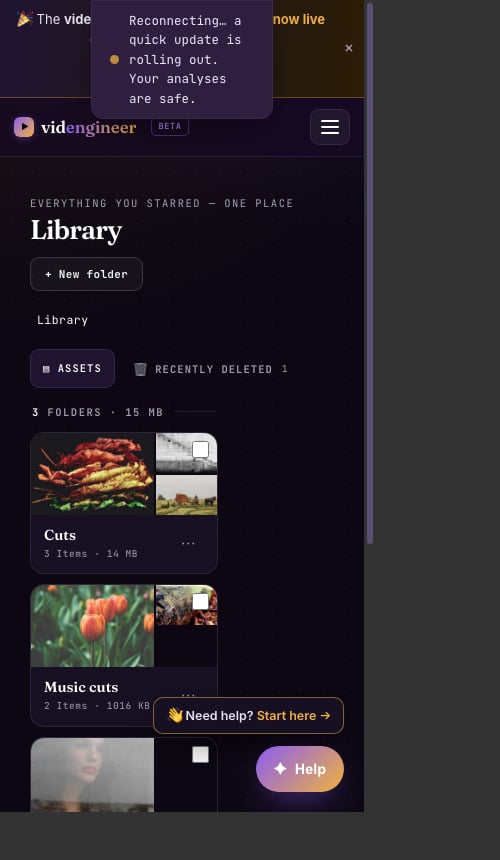 ## Star a whole analysis
Star the analysis when the whole report is worth returning to: a strong launch reference, a category benchmark, a useful competitor teardown, or one of your own winners.
Starred analyses help you build a playbook over time. They preserve the report context, not just one frame or clip.
## Star media
Star media when one part is the useful reference:
* A cut from The Cuts
* A hook frame
* A product-screen moment
* A cast/object cutout
* A world clean plate
* A Sound Kit item
* An extracted asset
## Organize later
After starring, add the item to:
* A folder when it is a file you need to store
* A collection when it belongs to a research set
* A moodboard when the visual relationship matters
* A share link when you need someone else to review it
## Extension support
The Chrome extension supports star-to-Library from the browser workflow, so you can save while researching. See [Chrome extension](/running/chrome-extension).
## Star a whole analysis
Star the analysis when the whole report is worth returning to: a strong launch reference, a category benchmark, a useful competitor teardown, or one of your own winners.
Starred analyses help you build a playbook over time. They preserve the report context, not just one frame or clip.
## Star media
Star media when one part is the useful reference:
* A cut from The Cuts
* A hook frame
* A product-screen moment
* A cast/object cutout
* A world clean plate
* A Sound Kit item
* An extracted asset
## Organize later
After starring, add the item to:
* A folder when it is a file you need to store
* A collection when it belongs to a research set
* A moodboard when the visual relationship matters
* A share link when you need someone else to review it
## Extension support
The Chrome extension supports star-to-Library from the browser workflow, so you can save while researching. See [Chrome extension](/running/chrome-extension).