

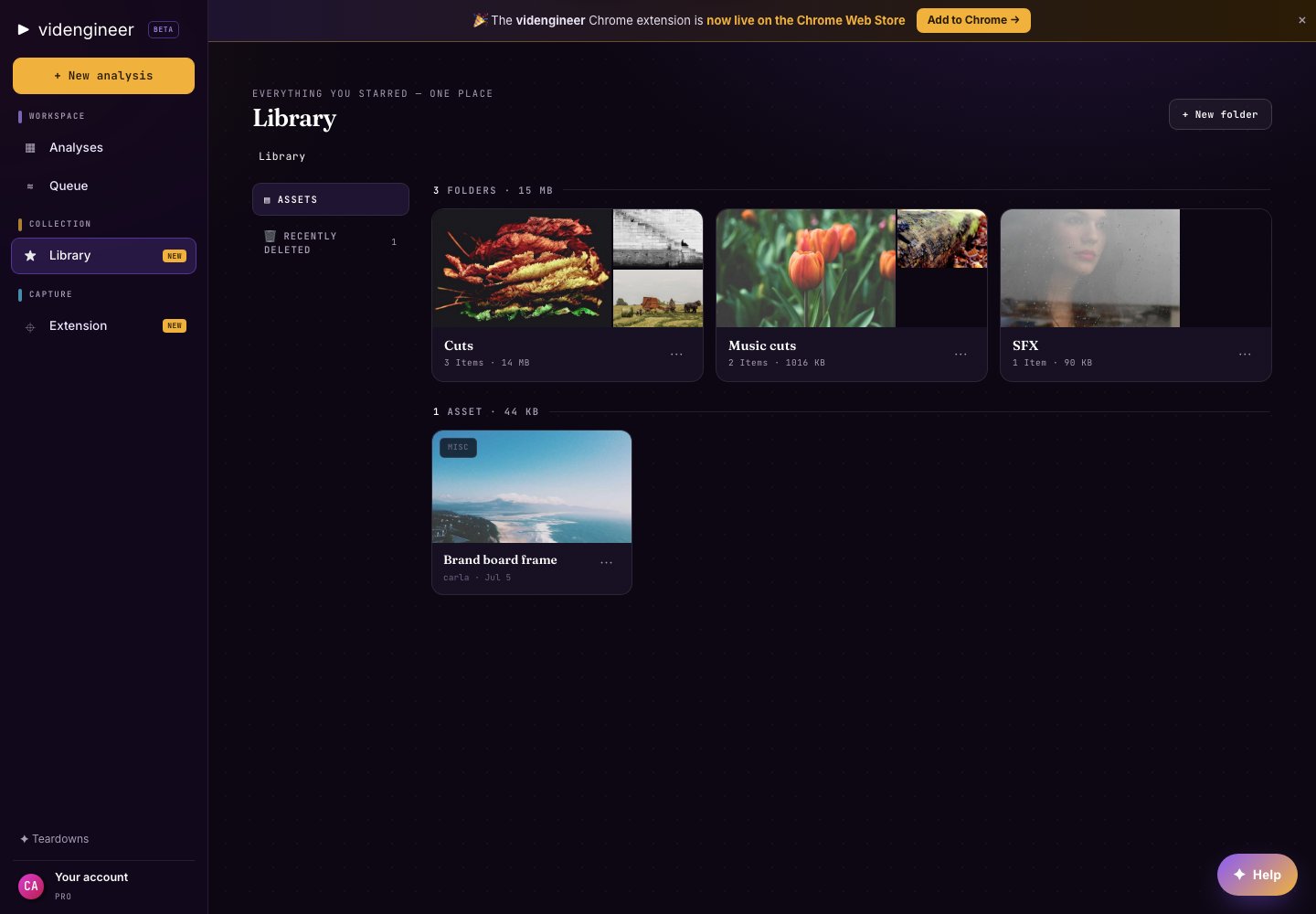
Library root with the Assets tree and saved folders.
What lives in Library
Canvas is not a Library organizer. Use Folders and Collections to organize and find assets in Library, then open Canvas separately when you want to compose them on a board.
Team workspaces add a shared Library and pooled credits. See Team plan & seats.
How items get into Library
- Star an analysis from a teardown or analyses list.
- Star a media item, frame, cut, cutout, or clean plate.
- Save extracted assets from Asset Extractor into a Folder or Library root.
- Use the Chrome extension’s star-to-Library action.
Good Library structure
Use one of these patterns:- By campaign: Launch, Black Friday, Product Hunt, webinar, feature release
- By category: Founder videos, UGC ads, cinematic brand films, product demos
- By client or team: Client A, Client B, sales enablement, growth tests
- By job: Hooks, proof moments, product screens, sound references, transitions
Related pages
Saving & organizing
Folders, Collections, Canvas, share links, and trash behavior.
Search & filters
Find saved analyses and assets quickly.
Starred analyses & media
What happens when you star a teardown or media item.
Chrome extension
Save to Library while researching in the browser.